Pilates Anytime is compatible with Google Chromecast for streaming on Android, macOS, or Windows devices.
If you use an iPhone or iPad, you can also use AirPlay with Apple TV or an AirPlay-compatible smart TV to watch our online Pilates classes.
Using Chromecast in the iOS or Android App
- Make sure your phone and TV are connected to the same Wi-Fi network.
- Make sure that your TV has Chromecast set to ON.
- In the video in the app, click the casting icon at the top right side of the video.
- On the next screen that opens, follow the prompts to find your Chromecast device to stream.

Using Chromecast on the Website
- Download/update the newest Google Chrome browser (recommended, but some users have reported using the Microsoft Edge Browser successfully as well; if so, make sure it is updated).
- Set up your Chromecast device. Connect your computer and Chromecast to the same wireless network.
- Choose a Pilates Anytime video in the Chrome (or MS Edge) browser and begin playing.
- Click on the three dots to the right of the Chrome browser to open the Chrome menu and follow the prompts to cast.
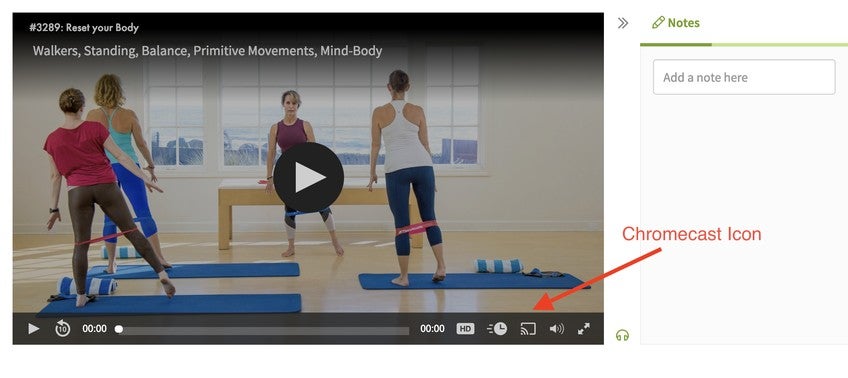
Note: If you cannot see your Chromecast device under "Cast to," you have not configured your Chromecast device correctly, or you are not on the same network as your Chromecast device.
Click here for more help on using your Chromecast device to stream your Pilates classes.